
What Should I Check Before Buying a Second Hand iPhone?
Buying a second hand iPhone? The 12 checks that catch stolen, fake or faulty phones, including the 30-second IMEI test.
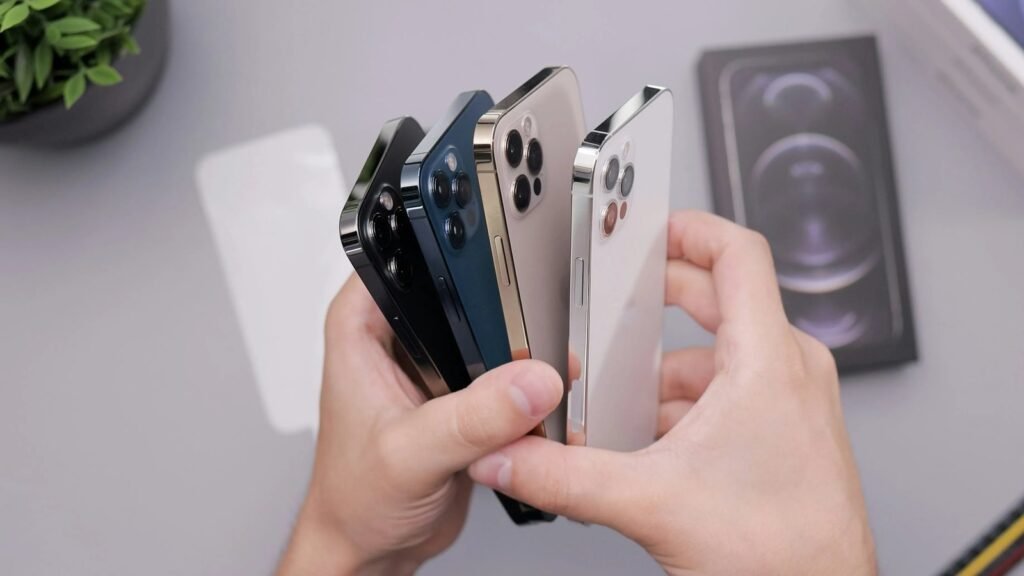
That “too good to be true” iPhone on Facebook Marketplace? It might be a genuine bargain from someone upgrading — or it might be stolen, iCloud-locked, or a convincing fake that’ll die in a month. Knowing what to check before buying a second hand iPhone is the difference between saving £300 and losing £300. I’ve bought and sold enough used iPhones to know exactly where the traps are, and this 12-point checklist catches every common scam.
Run through all twelve. It takes 15 minutes and has saved me from two stolen phones and one very convincing fake.
Buying Second Hand iPhone Checklist: The 12 Checks
1. Check the IMEI (the 30-second stolen-phone test)
On the phone, dial *#06# — the IMEI appears instantly. Compare it with the IMEI in Settings > General > About and the one etched on the SIM tray. All three must match; mismatches suggest a refurbished franken-phone or worse. Then check the IMEI against a stolen-phone database. In the UK, report a suspicious result to the police — and walk away from the deal. Never buy a phone the seller won’t let you IMEI-check.
2. Verify it’s not iCloud locked (Activation Lock)
The phone must be fully signed out of the previous owner’s Apple ID and reset to the “Hello” setup screen. If it asks for someone else’s Apple ID at setup, it’s Activation Locked — useless to you, possibly stolen. Ask the seller to remove it in front of you at Settings > [their name] > Sign Out, or remotely via iCloud.com. No exceptions, no “I’ll do it later.”
3. Confirm it’s not carrier-locked (or that the network suits you)
Insert your own SIM and check for signal. Some second-hand iPhones are locked to a specific network — fine if it’s yours, a problem if not. Since December 2021, UK networks can’t sell locked phones, but older second-hand stock may still be locked. Unlocking is usually free via the original network, but it’s hassle you don’t need.
4. Check battery health
Settings > Battery > Battery Health & Charging. Above 90% is excellent, 85–90% is fine, below 85% means you’ll want a replacement soon (£70–£100). Below 80% and Apple considers it “significantly degraded.” Factor the replacement cost into your offer. Our guide on how long iPhone batteries last has the full picture.
5. Test every button, port and feature
Methodically: volume buttons, mute switch, power button, Lightning/USB-C port (does it charge?), speakers (play music), microphones (record a voice memo), cameras (all lenses, front and back), flash, Face ID/Touch ID, and Wi-Fi/Bluetooth connections. Sellers hiding faults rely on buyers feeling awkward about thorough testing — don’t be. It’s your money.
6. Inspect the screen properly
Display a white image fullscreen (search “white image” in Safari) and look for dead pixels, discolouration and uneven brightness. Then a black image for backlight bleed. Check touch responsiveness across the entire screen — dead zones hide in the corners. A replaced third-party screen isn’t necessarily a dealbreaker, but it should be reflected in the price (see our cracked screen repair vs replace guide for cost context).
7. Check for water damage
Look in the SIM tray slot with a torch — Apple’s liquid contact indicator turns red on water exposure. Also check for corrosion around the charging port and fogging under the camera lenses. Water damage causes delayed failures, so this check protects you from a phone that works today and dies next month.
8. Verify the model and storage
Settings > General > About shows the true model number and capacity. Scammers have been known to sell modified phones reporting false storage (a 64GB phone hacked to report 256GB). If the price seems too good for the stated storage, be suspicious. The model number also reveals the region — phones from certain regions have different warranty coverage.
9. Check the serial number with Apple
Enter the serial number on Apple’s coverage checker (via Apple’s official support pages) to verify the model, warranty status and whether it’s flagged. Takes two minutes and confirms you’re getting what was advertised.
10. Assess physical condition honestly
Minor scratches are fine and expected. Deep dents near the screen, a bent frame, or a cracked back (on glass-back models) suggest drops that may have caused internal damage. Check the camera lenses for scratches — they ruin photos and are expensive to fix.
11. Meet safely and pay securely
For in-person sales: meet in a public place, ideally a police station “safe trade” zone (many UK stations offer them). Test everything before paying. For online: use platforms with buyer protection (eBay, not bank transfer). Never pay by bank transfer to a stranger — you have zero recourse. If the seller refuses secure payment, that’s your answer about their legitimacy.
12. Get proof of purchase
Ask for the original receipt or proof of ownership. Legitimate sellers have it or have a plausible story; thieves don’t. It’s also useful for warranty claims and proves the phone wasn’t bought with a stolen credit card (which can get it blacklisted later).
Fair Prices: Don’t Overpay
Check recently sold listings on eBay (not asking prices — sold prices) for your exact model, storage and condition. As a rough guide in 2026: iPhone 12 £150–£220, iPhone 13 £220–£320, iPhone 14 £300–£420, iPhone 15 £450–£600. Private sales should be 10–15% below refurbished-retailer prices (which include warranties). If someone’s asking retailer prices privately, buy from the retailer and get the warranty.
If a deal seems suspicious — stolen goods, fraud, or a seller pressuring you — report it to Action Fraud. And trust your gut: the money you “save” on a dodgy deal is never worth the risk.
Setting Up Your Second-Hand iPhone
Bought it, checked it, paid securely — now make it yours properly:
- Update iOS immediately. Second-hand phones often sit on old software. Update before doing anything else — security patches matter more than any other step.
- Sign in with your Apple ID and enable two-factor authentication if you haven’t already. This activates Find My iPhone, which protects your investment against theft.
- Check battery settings: Enable Optimised Charging (or the 80% limit on iPhone 15+) from day one to maximise the remaining battery lifespan.
- Review what’s installed: The previous owner should have wiped it, but check for unfamiliar profiles (Settings > General > VPN & Device Management) — remove anything you don’t recognise.
- Set up your backups: Enable iCloud Backup immediately, before you’ve accumulated anything worth losing. Future-you will thank present-you.
- Test everything again over the first week — some faults (intermittent touch issues, battery quirks) only appear with real use. You’re within your return window; use it.
The Bottom Line
IMEI check, iCloud unlocked, your SIM works, battery above 85%, everything tested, serial verified with Apple, paid securely. Twelve checks, fifteen minutes, and you’ll never buy a lemon. The second-hand iPhone market is full of genuine bargains — this checklist just makes sure you get one of those instead of someone else’s problem.





1 thought on “What Should I Check Before Buying a Second Hand iPhone?”