
How to Fix Wi-Fi Dropping Out on a Virgin Media Router
Virgin Media Wi-Fi dropping out constantly? Nine practical fixes for the Hub 3, 4 and 5, from channel changes to demanding a replacement.
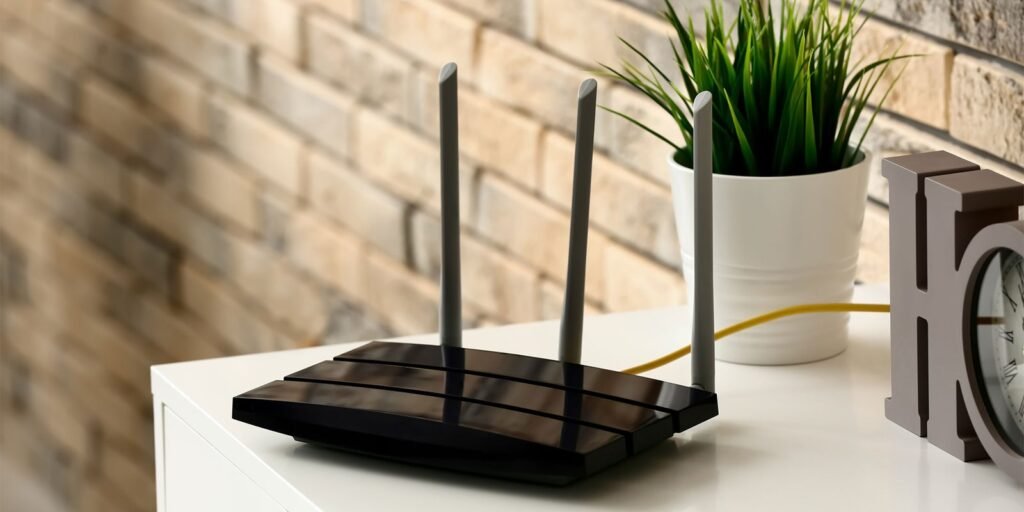
You’re mid-Netflix episode, the crucial scene is building, and then — buffering. The dreaded spinning wheel. If your Virgin Media Wi-Fi dropping out fix search brought you here at 9pm while the rest of the house shouts about their own frozen screens, welcome: you’re one of thousands dealing with this exact frustration. Virgin Media’s Hub routers are decent hardware, but their default settings are optimised for Virgin’s convenience, not your home’s quirks.
Before you ring customer services and spend 45 minutes being told to turn it off and on again, work through these fixes. They’re ordered from quickest to most involved, and they solve the problem for the vast majority of people.
Virgin Media Wi-Fi Dropping Out Fix: Start With the Obvious
1. The proper reboot (not just the button)
Switch the Hub off at the wall, wait a full 60 seconds, then switch it back on and give it five minutes to fully reconnect. I know you’ve heard this a thousand times, but a surprising number of people only press the power button briefly, which puts some Hubs into standby rather than rebooting. The wall-switch method clears the router’s memory properly and forces it to re-establish its connection to Virgin’s network.
2. Check whether it’s actually the Wi-Fi or the broadband
This distinction matters enormously. Plug a laptop directly into the Hub with an Ethernet cable and run a speed test. If the wired connection is solid but Wi-Fi drops, the problem is your wireless signal — fixable at home. If the wired connection drops too, the fault is on Virgin’s side (or your Hub is dying), and you should check the Ofcom guidance on broadband faults and your right to a fix before calling, so you know where you stand.
3. Move the Hub — location is everything
Virgin engineers often install the Hub wherever the cable enters the house, which is frequently the worst possible spot: tucked behind the TV, inside a cupboard, or in a corner room. Wi-Fi signals radiate outwards and downwards, so:
- Place the Hub centrally in your home, ideally on an upper floor
- Keep it out in the open — not in a cupboard, behind the telly or under the stairs
- Keep it away from microwaves, baby monitors and thick stone walls
- Don’t sit it directly on the floor; a shelf at waist height or above is better
If the cable entry point forces a bad location, a longer coaxial cable (£10–£15) gives you freedom to reposition.
Virgin Media Hub Settings Worth Changing
4. Split the 2.4GHz and 5GHz bands
By default, Virgin Hubs broadcast a single network name and “intelligently” steer devices between bands. In practice, this steering causes exactly the dropouts you’re experiencing — devices get bounced between bands mid-stream. Log into your Hub (usually at 192.168.0.1), go to Advanced > Wireless, and give the 2.4GHz and 5GHz networks separate names (e.g. “Home” and “Home-5G”). Connect stationary devices (TVs, consoles, work laptops) to 5GHz for speed, and let phones and smart home gadgets use 2.4GHz for range.
5. Change the Wi-Fi channel
In flats and terraced streets, everyone’s routers fight over the same channels. Download a free Wi-Fi analyser app on your phone, see which channels are congested around you, and manually set your Hub to a quiet one (1, 6 or 11 on 2.4GHz). The Hub’s “auto” channel selection is notoriously lazy about moving off a crowded channel.
6. Turn off “Smart Wi-Fi” / channel optimisation
On the Hub 4 and 5, Virgin’s automatic optimisation periodically changes settings in the background — and each change briefly drops connections. If your dropouts happen at odd regular intervals, this is a prime suspect. Disable it in the Hub admin panel and manage channels manually instead.
7. Update the Hub firmware
Hubs should update automatically, but it doesn’t always happen. In the admin panel, check the firmware version against Virgin’s published latest. An outdated Hub 3 in particular had notorious dropout bugs that were fixed in later firmware. If your Hub is very old, skip to step 9.
When the Hub Itself Is the Problem
8. Check for area outages and over-utilisation
Virgin’s cable network shares capacity between neighbours, and in some areas evening congestion is chronic. Check Virgin’s service status page and, crucially, ask neighbours on Virgin whether they suffer too. If the whole street drops at 8pm, no settings tweak will fix it — that’s a network capacity issue, and you should be logging complaints. Under Ofcom rules, if Virgin can’t fix a persistent fault, you may be entitled to leave your contract penalty-free.
9. Demand a Hub upgrade or replacement
Still on a Hub 3? It’s ancient, and Virgin will often upgrade you to a Hub 4 or 5 if you ask firmly — especially if you report faults. A failing Hub also causes dropouts that look like signal issues: if the Hub runs very hot, reboots itself, or drops wired connections too, insist on a replacement. Be polite but persistent; mention you’re considering leaving, and retentions teams suddenly find stock.
10. Add your own kit: mesh or access points
If the Hub’s Wi-Fi simply can’t cover your home — thick Victorian walls are the classic killer — stop fighting it and add proper coverage. A mesh Wi-Fi system in a large house paired with the Hub in modem mode is the gold standard fix, and it solves dropout problems permanently. Even a single decent access point wired to the Hub transforms dead zones.
Getting Virgin to Fix It: Complaints That Work
If you’ve tried the technical fixes and the problem is network-side, here’s how to complain effectively. First, build your evidence: run wired speed tests at different times over a week and screenshot the results, noting dropout times. Then call Virgin and ask for a fault reference number — without one, your complaint doesn’t officially exist. If the issue isn’t resolved within 30 days, you can request a deadlock letter, which lets you escalate to the Ombudsman Services: Communications for free. The ombudsman can order Virgin to fix the issue, waive fees, or pay compensation — and providers take complaints far more seriously once the ombudsman is mentioned. Throughout, be polite but specific: “my wired connection drops for 5–10 minutes every evening between 8 and 10pm, fault reference 12345, ongoing for three weeks” gets action; “my internet is rubbish” gets sympathy and nothing else.
The Bottom Line
For most people, splitting the Wi-Fi bands and repositioning the Hub fixes Virgin Media dropouts completely — try those two before anything else. If the problem is network-side congestion, document everything and know your rights; loyalty means nothing if the service doesn’t work. And if you’re paying for 500Mbps but only ever seeing it at 3am, it might be worth reading why broadband slows so badly in the evening to understand what’s really going on with peak-time speeds.







2 thoughts on “How to Fix Wi-Fi Dropping Out on a Virgin Media Router”