
How to Back Up Your Game Saves Properly
How to back up your game saves properly on PC, PlayStation, Xbox and Switch: cloud saves, manual backups, mods and disaster-proof routines. Here’s how to begin.
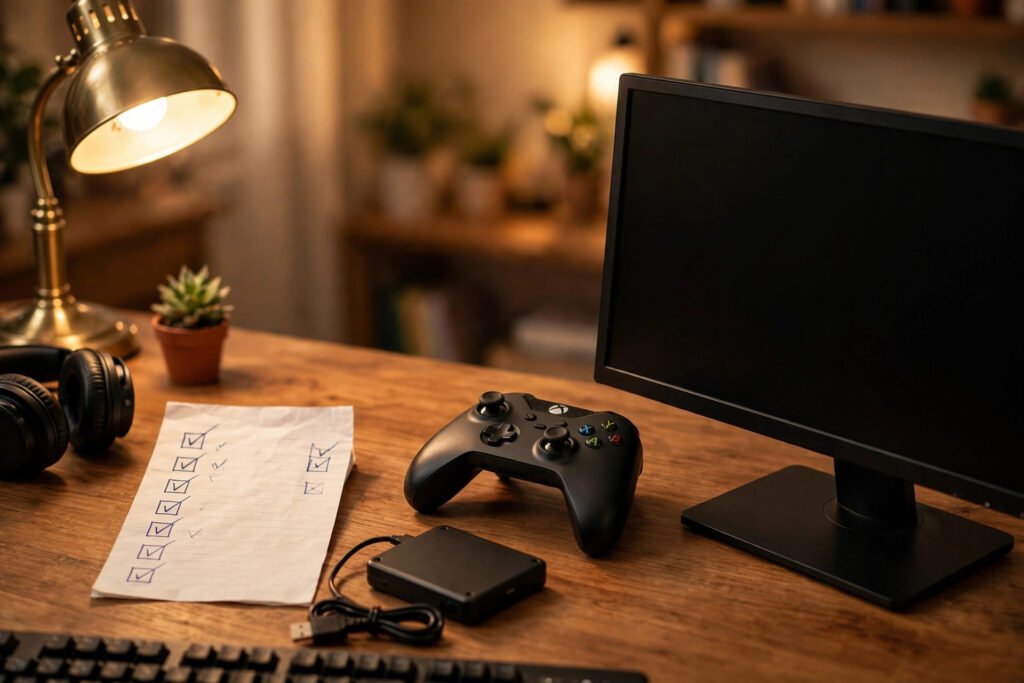
Two hundred hours into an open-world epic, your character maxed out and every side quest ticked off — then a corrupted file, a dead hard drive or one careless click wipes it all. It happens more often than anyone admits: forums are full of gamers mourning saves lost to console failures, botched updates and cloud-sync mishaps. The good news is that losing progress is almost entirely preventable. Here is how to back up your game saves properly across PC, PlayStation, Xbox and Nintendo Switch, so your adventures survive whatever your hardware throws at them.
Why game saves disappear in the first place
Saves are small, fragile files, and they fail for ordinary reasons. Drives die, and a power cut during a write can corrupt a save mid-update. Cloud sync — the feature most people trust blindly — occasionally overwrites a good local save with an older cloud copy, or never uploads because the console was switched off too quickly. Accidental deletion is another classic: a shared family console or a misclick during a storage clean-up.
Then there are the platform traps. Some games keep a single autosave slot, so one bug poisons your only lifeline. Modded PC games can break their own save format after an update. And Switch owners have learned that not every game supports cloud backups at all. Each risk has a straightforward countermeasure, which is what the rest of this guide covers.
PC game saves: finding where they hide
PC gaming gives you the most control — and the most hiding places. Unlike consoles, there is no single save folder, so the first job is knowing where to look.
Steam and the userdata folder
For Steam games with Steam Cloud enabled, saves sync automatically; verify per game under Properties > General. But cloud sync is not infallible, especially across two machines. Local copies live in C:\Program Files (x86)\Steam\userdata, and copying that folder to a backup drive takes seconds. If a game refuses to sync, Steam’s official support pages document how cloud synchronisation works and how to resolve conflicts.
Other launchers and scattered folders
Epic Games Store titles usually save to Documents\My Games or %LOCALAPPDATA%, with cloud saves for many but not all games. GOG Galaxy offers cloud saves for supported titles, while older DRM-free games save wherever the developer fancied. Ubisoft Connect and EA App titles generally sync to their own clouds. Practical habit: learn the save location for each game you care about — the PCGamingWiki lists them per title and is worth bookmarking.
Tools that automate PC backups
GameSave Manager detects installed games and backs up saves on a schedule; Ludusavi is an open-source alternative working across Windows, macOS and Linux. Set either to run weekly to a second drive and your PC library is effectively disaster-proof. Pair it with an external hard drive rated for backing up family photos — the same drive that protects your photos can hold your save library several times over.
Backing up PlayStation saves properly
PS Plus cloud storage
With PlayStation Plus, saves upload automatically — 100GB of cloud storage on both PS5 and PS4. Enable it under Settings > Saved Data and Game/App Settings and set uploads to automatic. Two catches: let the subscription lapse and Sony may delete cloud saves after six months, and sync only runs periodically, so do not yank the power seconds after a session. PlayStation’s official support guides walk through the exact menus.
The USB method
No PS Plus? Copy saves to a USB drive (FAT32 or exFAT) via Settings > Saved Data and Game/App Settings > Copy to USB Drive. One PS5 limitation matters: PS5-native saves cannot be copied to USB — only PS4 saves on a PS5 can. For PS5 titles, cloud storage is the only official route, which makes PS Plus far more valuable than its multiplayer headline suggests. Do a USB copy monthly and store the stick away from the console.
Xbox: the automatic approach (and its gaps)
Xbox handles saves the most invisibly: every Xbox One and Series X/S save syncs to the cloud automatically when signed in — no subscription needed. Sign in on a new console and carry on. It mostly just works.
The edge cases still bite. Long offline stretches can make local and cloud saves diverge; reconnecting usually resolves it, but a conflict prompt forces a choice, and choosing wrong loses progress. If a save corrupts locally, that corruption can sync upward before you notice. Cheap insurance: screenshot your stats screen after milestones, giving you a reference point no sync error can erase. There is no official USB export for Xbox saves, so cloud is the whole story.
Nintendo Switch cloud saves and their limits
Switch Online subscribers get cloud backups for most games via Settings > Data Management > Save Data Cloud, with per-game status shown and manual backup available any time. The limits matter more here than anywhere: Nintendo excludes games like Pokémon titles and Splatoon 2 on anti-cheating grounds, and Animal Crossing uses its own separate Island Backup. If your most-played game is excluded, your only protection is the console itself — sturdy case, no homebrew tinkering, and proper system transfers via Settings > Users when upgrading. Check each game’s cloud status rather than assuming.
A disaster-proof routine: the 3-2-1 rule for gamers
IT professionals swear by the 3-2-1 rule — three copies, two media, one off-site — and it fits gaming perfectly: the live save on your device, a scheduled backup to an external drive or USB stick, and cloud saves enabled wherever offered. Make it a ritual: automated PC backup weekly, PlayStation USB copy monthly, and a cloud-status check after finishing any game you loved. If you are hosting a games night for adults, back up before guests arrive — cheap insurance against well-meaning friends overwriting your campaign. Ten minutes a month protects hundreds of hours.
Restoring saves when things go wrong
When disaster strikes, stop before acting — the classic recovery mistake is letting a fresh empty save overwrite the good backup. On PlayStation, download from cloud storage and check timestamps if several exist. On Xbox, deleting the game’s local save data forces a re-download from the cloud. On PC, read Steam’s sync-conflict dialog carefully: “upload” versus “download” is a one-time decision. On Switch, redownload from Save Data Cloud before launching the game, since launching first creates a new local save that complicates things. And check in-game load menus — many games keep multiple rolling autosaves.
Conclusion
Backing up game saves is not glamorous, but neither is replaying eighty hours of a role-playing epic. Enable cloud saves everywhere, keep a manual copy on separate storage for the games that matter most, and run your routine monthly. Do that, and the next corrupted file becomes a five-minute inconvenience instead of a tragedy.
Frequently Asked Questions
Do I need PlayStation Plus to back up PS5 saves?
For cloud backups, yes — PS5-native saves can only be backed up to Sony’s cloud, which requires PS Plus. PS4 games on a PS5 can be copied to USB without a subscription.
Why do some Nintendo Switch games not support cloud saves?
Nintendo excludes games where cloud saves could enable cheating or item duplication, such as Pokémon titles and Splatoon 2. Animal Crossing: New Horizons uses its own Island Backup feature instead.
How often should I back up my game saves?
Keep automatic cloud saves on everywhere, run an automated PC backup weekly, and do a manual USB or drive copy monthly for your most-played games.
Can I transfer saves between PC and console?
Sometimes. Games with cross-progression via the developer’s account system (Ubisoft Connect, EA, many live-service titles) sync across platforms. Otherwise saves are platform-specific and cannot transfer directly.